Lightroom Plugin
PICR includes a free Lightroom Classic plugin that lets you import ratings and flags from PICR back into Lightroom.
This is useful when clients have reviewed and rated images in PICR - you can sync those ratings back to your Lightroom catalog without manually updating each photo.
Installation
Download
The Lightroom plugin is bundled with your PICR installation and always matches your PICR version.
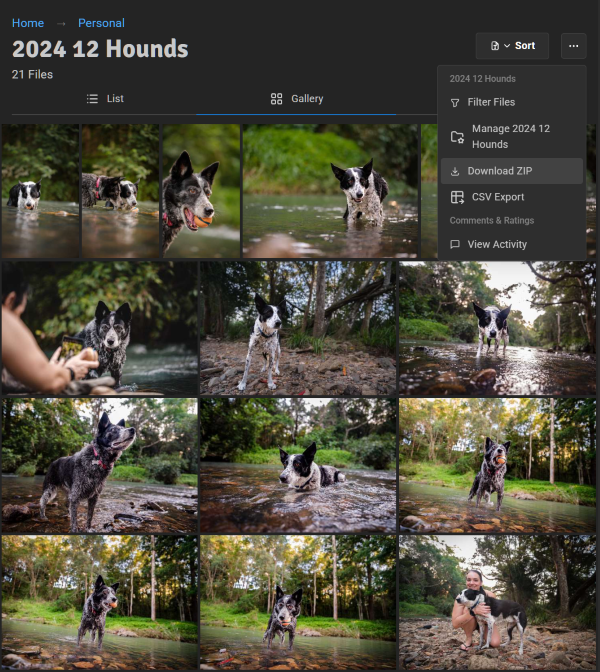
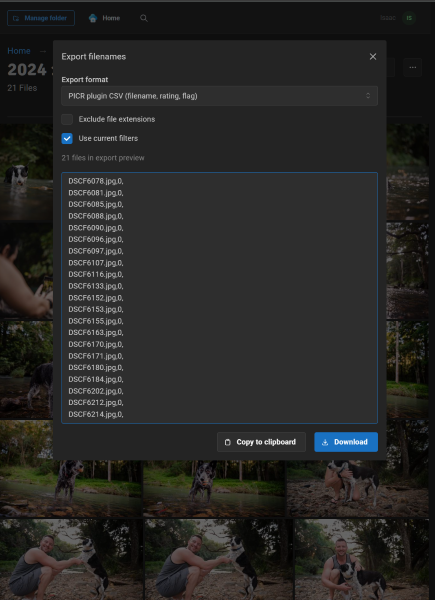
- In PICR, go to any folder and click CSV Export
- Select PICR plugin CSV format
- Click the PICR Lightroom Plugin download link
- Extract the zip file
Install in Lightroom
Option A: Copy to Modules folder
Copy the extracted picr.lrplugin folder to:
- macOS:
~/Library/Application Support/Adobe/Lightroom/Modules/ - Windows:
C:\Users\<username>\AppData\Roaming\Adobe\Lightroom\Modules\
Then restart Lightroom.
Option B: Add via Plugin Manager
- In Lightroom, go to File → Plug-in Manager
- Click Add
- Navigate to the extracted
picr.lrpluginfolder - Click Done
Usage
Step 1: Export from PICR
- In PICR, navigate to the folder you want to sync
- Click the folder menu and select CSV Export
- Configure the export options:
- Format: PICR plugin CSV
- Enable Include subfolders if needed
- Click Copy to clipboard

Step 2: Import in Lightroom
- In Lightroom, select the same folder in the Library module
- Go to Library → Plug-in Extras → Import PICR Data
- Paste the CSV data into the text field
- Click Import

Step 3: Review Results
The plugin will show you:
- How many files were updated
- Any files that couldn’t be found
- If all files were already up to date
Features
Ratings
PICR ratings (0-5 stars) are synced to Lightroom’s star ratings.
| PICR | Lightroom |
|---|---|
| 0 stars | Unrated |
| 1-5 stars | 1-5 stars |
Flags
PICR approval flags are synced to Lightroom’s pick status.
| PICR Flag | Lightroom |
|---|---|
| Approved | Picked (white flag) |
| Rejected | Rejected (black X) |
| None | No change |
Subfolders
When exporting from PICR with “Include subfolders” enabled, the plugin will match files in the corresponding Lightroom subfolders.
Extension Matching
The plugin matches by filename without extension. This means:
photo.jpgin PICR matchesphoto.NEForphoto.CR2in Lightroom- Perfect for workflows where you export JPGs to PICR but keep RAW files in Lightroom
Typical Workflow
- Export JPGs from Lightroom to a folder
- Add folder to PICR and share with client
- Client reviews and rates/approves images in PICR
- Export CSV from PICR
- Import to Lightroom using the plugin
- Filter in Lightroom by rating or flag to find approved images
- Continue editing the selected images
Troubleshooting
“No files from the CSV were found”
- Make sure you have the correct folder selected in Lightroom
- Check that the folder structure matches (if using subfolders)
- Verify the files exist in your Lightroom catalog
Files not matching
- The plugin strips file extensions before matching
- Virtual copies are supported (e.g.,
photo-2.jpgmatches “Copy 1”) - Check for typos in filenames
Plugin not appearing in menu
- Go to File → Plug-in Manager
- Find “PICR Lightroom Plugin” in the list
- Make sure it shows as “Installed and running”
- If not, try clicking Reload Plug-in
Updates
The plugin version always matches your PICR installation. After updating PICR:
- Download the new plugin from the CSV Export dialog (as described above)
- Replace the
picr.lrpluginfolder with the new version - In Lightroom, go to File → Plug-in Manager and click Reload Plug-in